

Now you have installed the PhoneTools Trialforce org, have a go at the following tasks to get to know the product using our preconfigured data.
If you haven’t already, get more information on the setup of your Trialforce org by reading the Introduction to your PhoneTools Trialforce org article.
Task 1: Test the screening on record pages
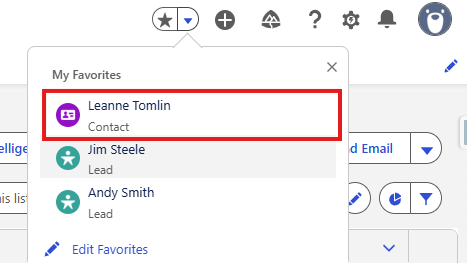
For this task find and click the Contact Leanne Tomlin from the favourites bookmark in the top right corner of the screen.
In the PhoneTools Lightning Component located in the top right of the record page you can see the screening status for both Mobile and Business Phone numbers.
For more information on screening statuses, take a look at PhoneTools features in your Trialforce org.

- Hover over the blue icons to see the current screening status.
- Press Screen in top right corner of the component to screen both numbers.
- Now hover over the icons again to see the new screening results.
You will see that the Mobile Phone number is ‘Not Listed’ on either TPS or CTPS databases so is safe to call. The Business Phone number is marked as ‘Listed’, and by hovering the mouse you can see it is not listed on the TPS database but it is listed on the CTPS database.

Now try this out for the Lead Jim Steele, which can also be found under the favourites bookmark.
- Repeat the previous steps on the Phone number: look at the screening status, press Screen, then look at the new screening status.
You will see that this number is marked as ‘Listed’, where it is found on the TPS database but not the CTPS.

- Edit the record by changing the phone number to 07700 900123.
- Notice what changing the number has done to the screening status.
- Now click Screen on the record and check the new status.
Adding or updating a number will automatically reset the screening status to ‘Not Screened’ so it will need to be screened again.

Task 2: Testing the formula field
Details on the formula field used in the Trialforce org can be found in the “PhoneTools Formula Field” information block along the right side of the record page.
For this task, find and click the Lead Andy Smith in the favourites bookmark.

- Notice the screening status for this Phone number is Excluded from screening and hover over the icon to see a Next Screen Due field is not relevant in this case.
- What happens when you press Screen?
You will notice that the component will not screen numbers which are excluded so the status will remain unchanged.
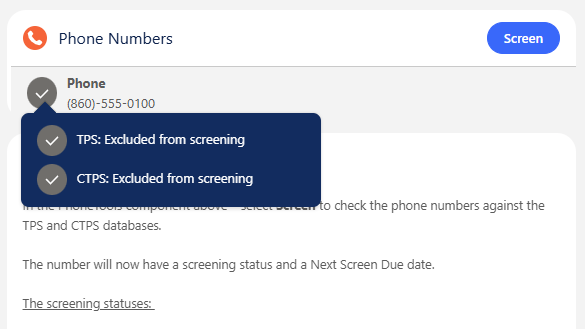
The Phone number in Andy Smith’s record is excluded because of the formula field placed on the Lead Phone in this org.
For the purpose of seeing how a formula field works, we are going to change this Lead to comply with the PhoneTools formula conditions in place:

- Edit the Lead Address Country to United Kingdom.
- See how the screening status has changed.
- Now press Screen and look at the new screening status.

After Screening, the Phone number is shown as ‘Not Listed’ (this makes sense as is not a UK number), the formula had saved an unnecessary screening of a non-UK number which would not have been on the TPS or CTPS databases.
Task 3: Batch phone screening
For this task you will have a brief look at how batch phone screening can be implemented, and test this on the Contact and Lead phone numbers preconfigured in the org.
- Go to the PhoneTools Administration tab.
- Select the Screening tab along the top of the page.
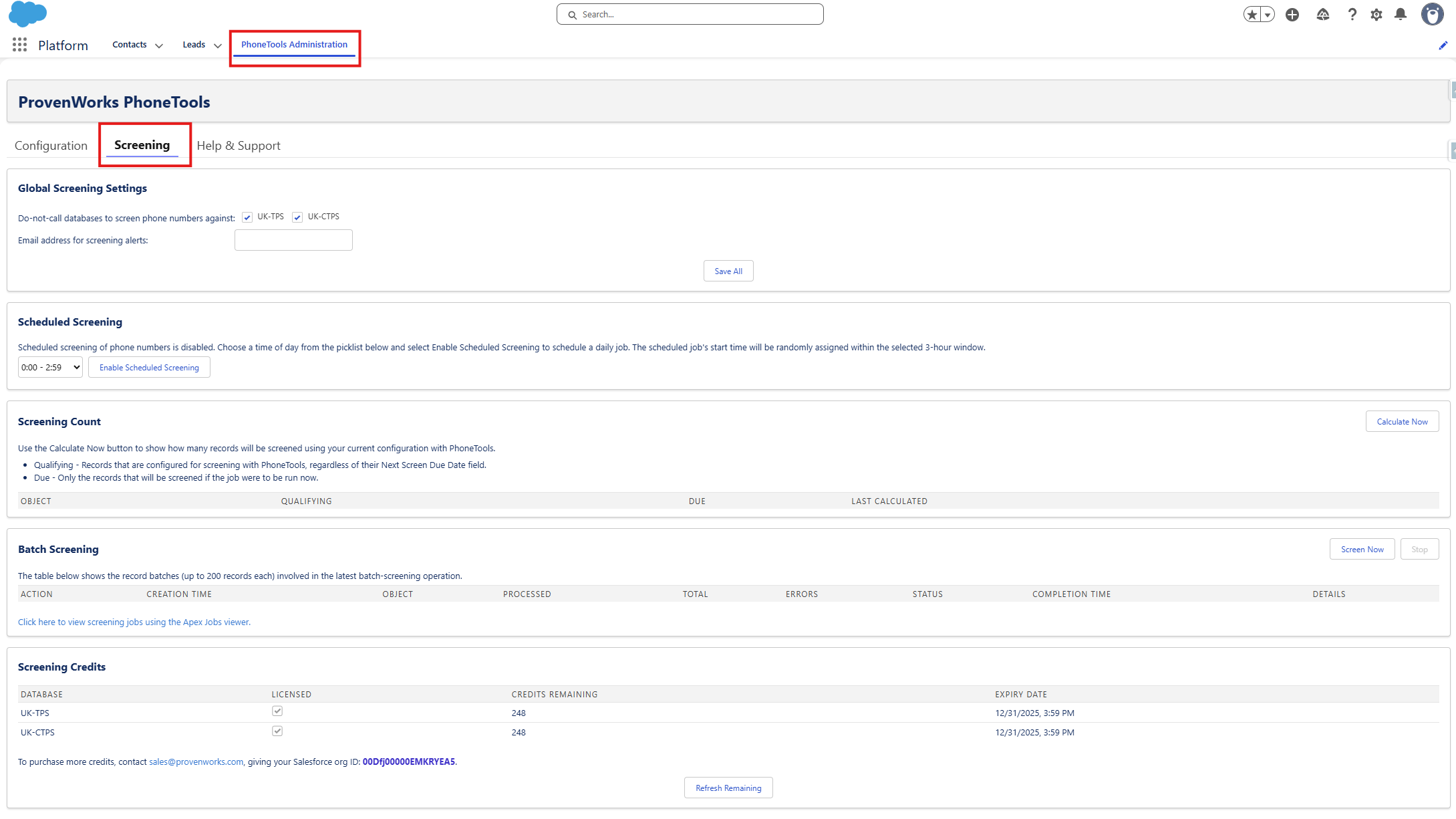
In a production org when you want to automate screening of numbers – you can set up a ‘Scheduled Screening’ which will process all ‘Not Screened’ or ‘Due for Screening’ numbers at a daily time.
For now we will test an immediate batch job – useful if lots of new numbers have been added to your org at once.
- It is good practice to check the count first to see how many numbers are due for screening: press Calculate Now next to Screening Count.
- The Screening Count now shows you each object with the relative Qualifying numbers and Due numbers.
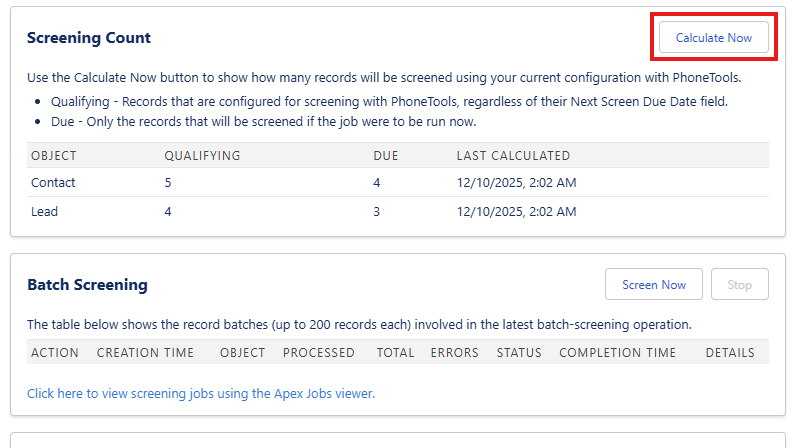
The Due number indicates how many numbers would be processed if a batch screening job was run.
You will notice that the Due number is lower than the Qualifying, this is because you have already screened some numbers in the org, so they do not need to be screened again until 21 days have passed.
To start the batch job and screen all the Due phone numbers:
- Next to Batch Screening select Screen Now
- This will show you the Object and related Processed jobs in real time throughout the batch job, ending with the Total job count and showing any errors and further details.

At the end you will see that credits remaining, shown at the bottom of the page, has decreased from the original 250.
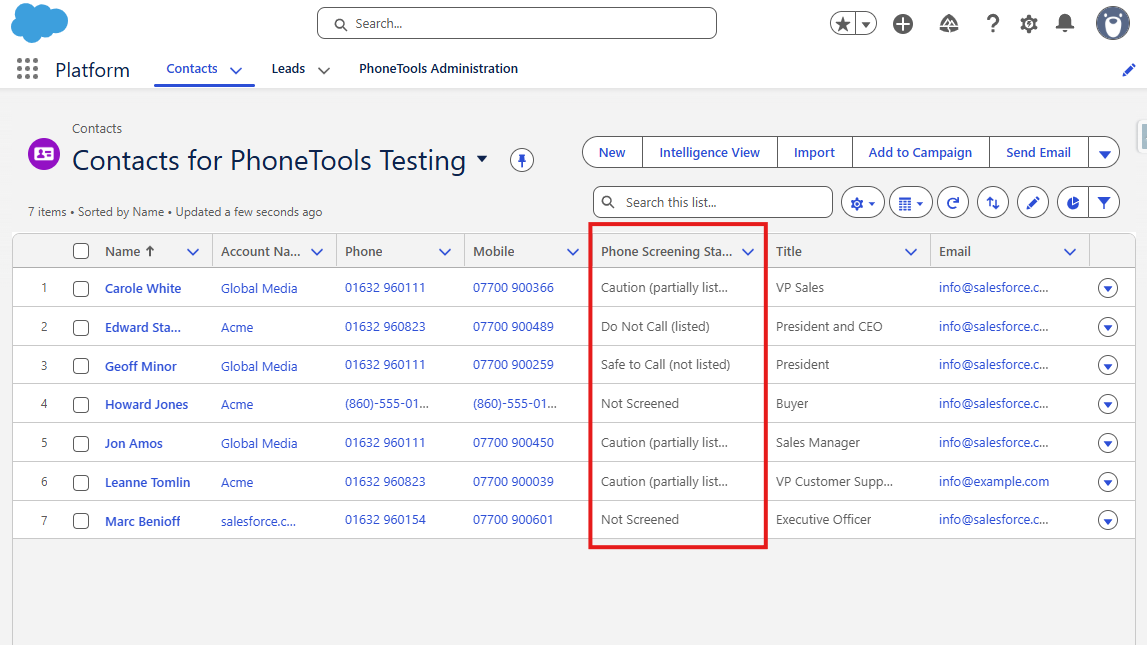
Look through the Contact and Lead tabs to see the new screening statuses of all the records. Where the record still says ‘Not Screened’, view it to check that specific Contact/Lead is excluded from screening by the formula field.
Note: for easy viewing select List View in the top right and then choose “{Object} for PhoneTools Testing” and pin this list – as this includes the Phone Screening Status in the list view.
For further exploration of the tool, feel free to add your own Contacts or Leads and play around with all of the features.

