



If a report isn’t visible within the Batch Address Verification app, this is usually due to the report being saved in the wrong folder or the report is missing the Record ID field.
How to fix it?
- Save the report in the AddressTools folder.
- Add the Record ID field to the report.
Step-by-step resolution guide:
1. Make sure the report is saved in the AddressTools folder.
- Go to Reports | [Your Report] | Edit.
- In the dropdown next to Save, select Properties.
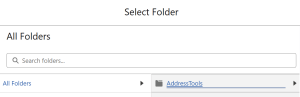
- Under Folder, choose Select Folder.
- Go to All Folders | AddressTools.
- Click Select Folder at the bottom of the page, then save.
2. Include the Record ID field in the report.
- Go to Reports | [Your Report] | Edit.
- In the left sidebar, select Outline.
- In Columns, add the relevant {Record} ID (e.g. for Accounts add Account ID).
- Save the changes making sure it is in the correct folder from Step 1.

If you are still experiencing issues and need assistance, contact support@provenworks.com .