Blog

PhoneTools features in your Trialforce org

PhoneTools screens telephone numbers stored in your Salesforce org against the UK Telephone Preference Service (TPS) and corporate TPS (CTPS) databases – helping you to remain compliant with UK data-protection and marketing laws. 

If you haven’t already, get more information on the setup of your Trialforce org by reading the Introduction to your PhoneTools Trialforce org article.

Screening Statuses

Here’s a quick breakdown of the simple screening status PhoneTools provides for each number: 

  • Green – Not Listed   
  • Red – Listed   
  • Blue – Not Screened  
  • Orange – Due for screening  
  • Grey – Excluded from screening (due to a formula field)   

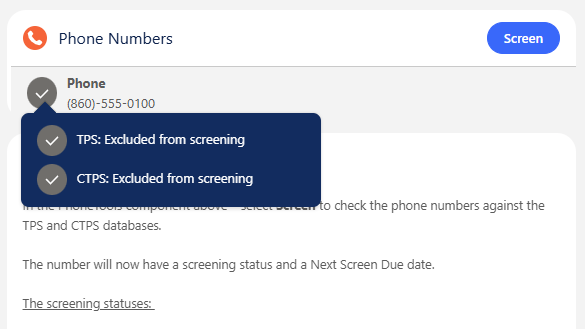
These statuses are displayed in the PhoneTools lightning record page component alongside each of the phone numbers that are configured for screening – additional information is revealed by hovering your mouse over the status icon. 
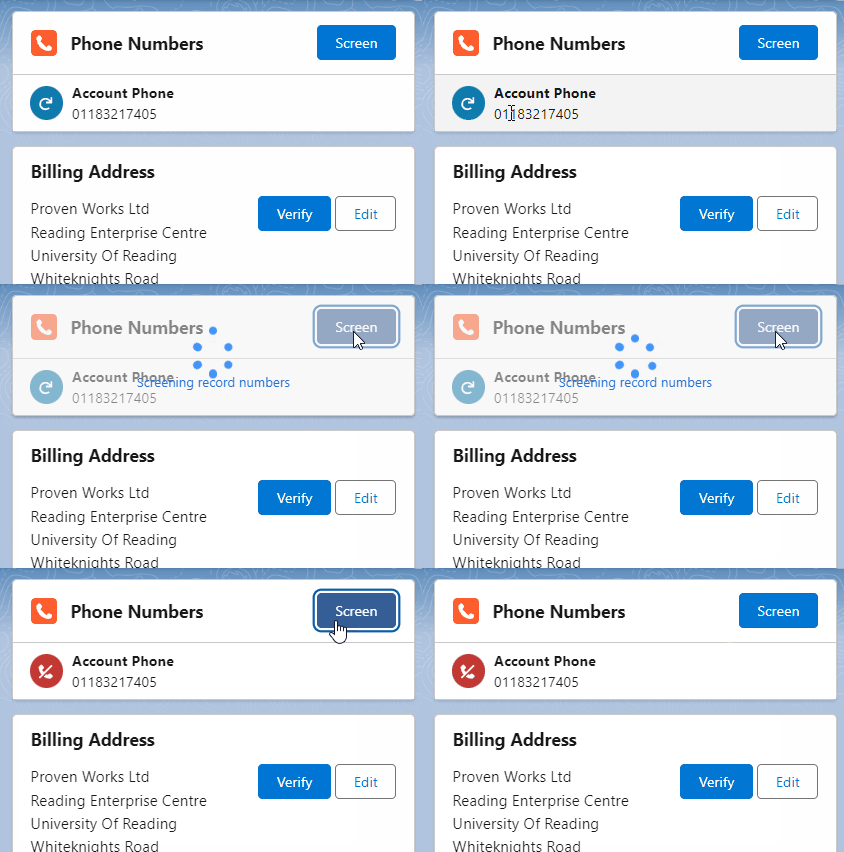
The status will show as Red – Listed if the number is found in either of the TPS and CTPS databases. This means the Green – Not Listed status represents the number not existing in either of the databases.

PhoneTools will populate a Next Screen Due date 21 days from the initial screening where the status will change to Due for screening to remind you to rescreen all numbers within the 28-day legal requirement. It is recommended to automatically screen records enabling the inbuild functionality. This will process all Not Checked/ Due for screening numbers at a daily time, or for further customisation you can create a Flow to programmatically fire screening. 

The Grey – Excluded from screening status only appears if there is a formula field present and the number does not meet the requirements to be screened with PhoneTools. For example, in the Trialforce org any Lead or Contact record without a UK address will be excluded from screening due to the formula field created.

Record Level Statuses 

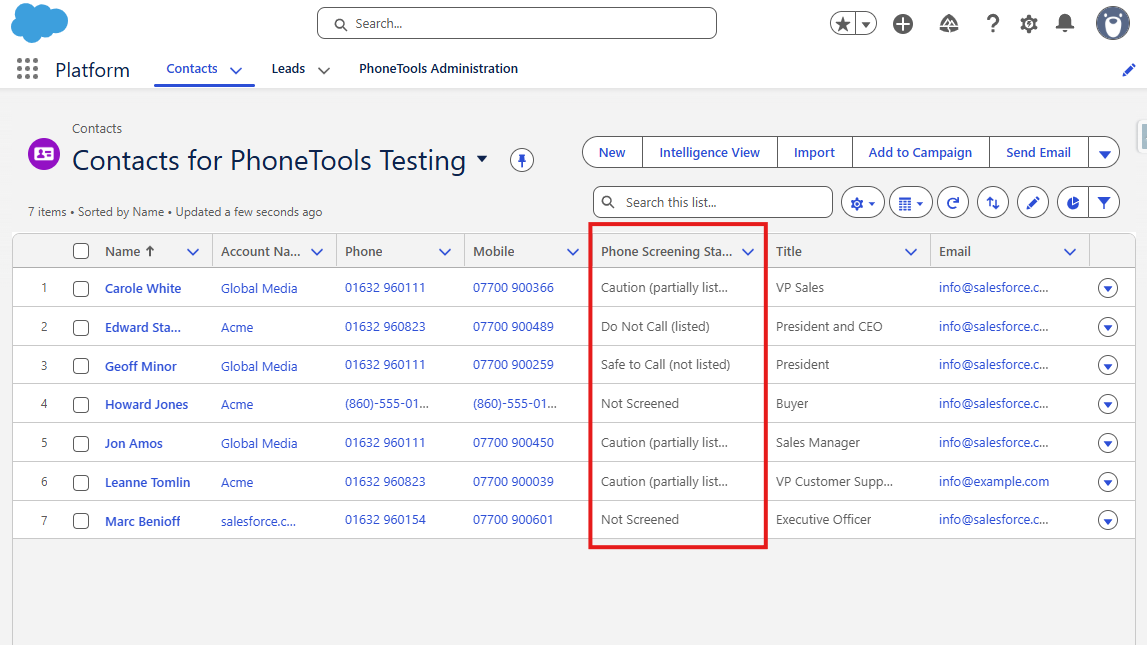
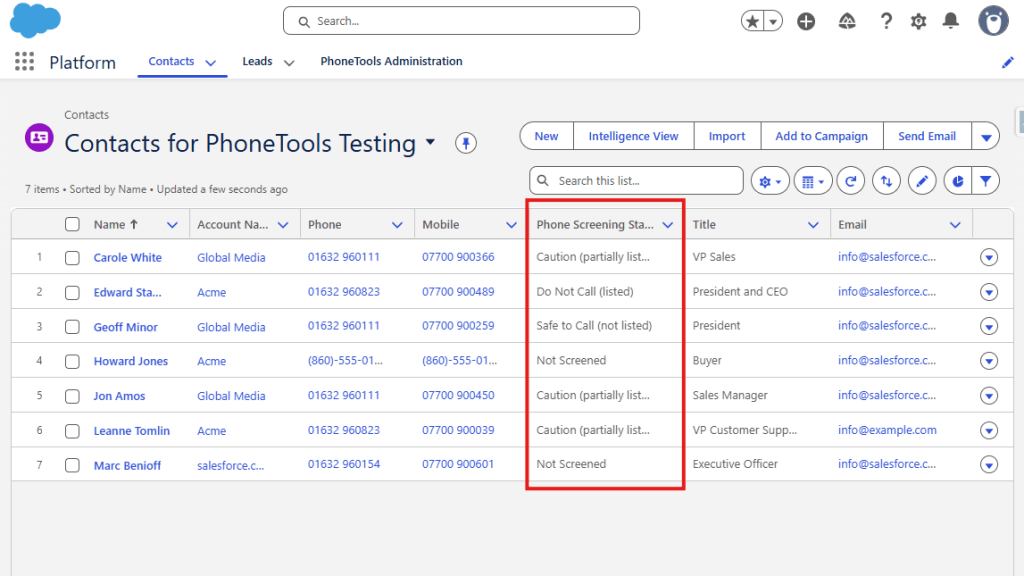
Under the Contacts and Leads tabs in the pinned list views, you’ll see a ‘Record Screening Status’ which summarises the screening status for all numbers on that record: 

  • Safe to Call (not listed) – All numbers on the record are considered safe to call as they are not listed. 
  • Caution (partially listed) – The record contains both numbers that aren’t listed as well as numbers that are.  
  • Do Not Call (listed) – All numbers on the record are listed in either database 
  • Not Screened – The record contains phone numbers that have not yet been screened against the configured databases or are excluded. 
  • Error – There is an issue with one or more of the numbers that exist on the record 

These record statuses give you a quick overview. For a detailed breakdown of each status, use the Lightning component inside the record itself. 
What to do on your org

For some introduction tasks to get you acquainted with PhoneTools look at the Tasks to complete on your PhoneTools Trialforce org article. This will guide you through some of the basic features of PhoneTools using the preconfigured Trialforce org, looking at screening records, formula fields and batch screening processes. 

We hope you enjoy exploring PhoneTools and it gives you a clear understanding of how it will help you maintain compliance and manage your phone-based outreach safely and efficiently. If you have any questions or would like further guidance, our team is here to help. 

Introduction to your PhoneTools Trialforce org

The PhoneTools Trialforce org gives you a way to explore all the features of PhoneTools without the needing a custom installation or setup. Use it to evaluate how PhoneTools can help you manage phone number screening against TPS and CTPS databases in your Salesforce environment before committing to a full implementation.  

If you haven’t already, head to the Salesforce AppExchange and sign up for a PhoneTools Trialforce org to get started. 

How the org is set up

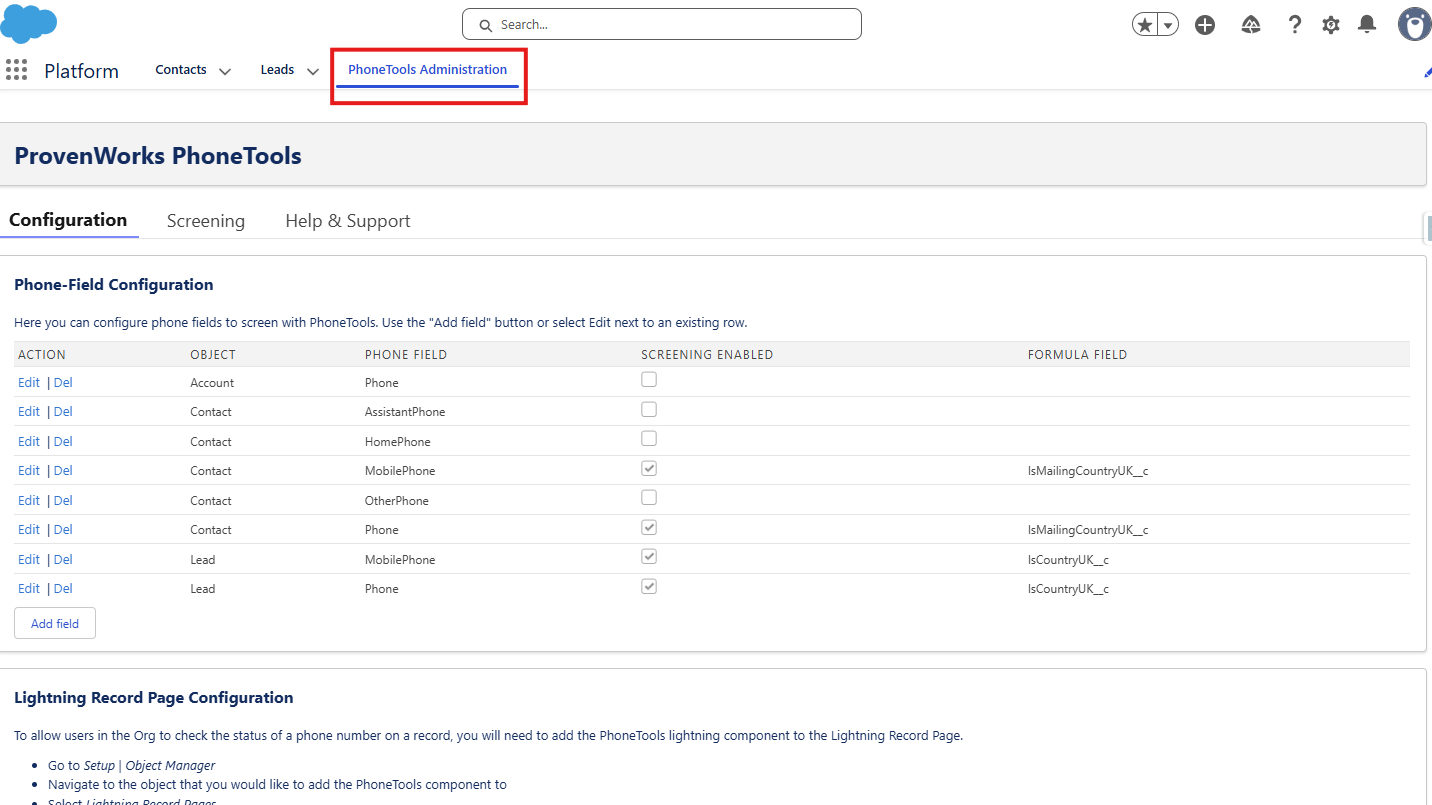
When you first log in to your Trialforce org, navigate to the Platform app shown below. You’ll see tabs for Contacts, Leads and PhoneTools Administration. 

We have pre­populated this org with sample Contacts and Leads (including telephone numbers) so you can begin testing right away. Make sure to select List View in the top right of the Contact page, similarly for Leads.

You can see all Contacts by selecting the “Contacts for PhoneTools Testing” list, similarly for Leads.

Feel free to pin these list views for ease, as they include a column for ‘Phone Screening Status’ so you can see immediately which records have been screened.  

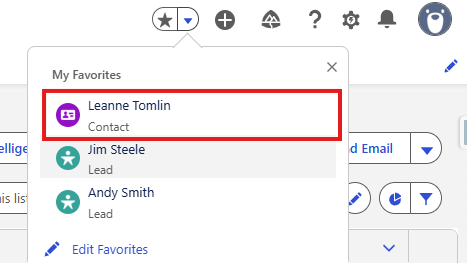
We have also created three ‘Favourites’ – sample Contact/Lead records – so you can quickly access representative examples. These are accessed from the top-right of the screen in the dropdown next to the favourites star.  

Record Pages

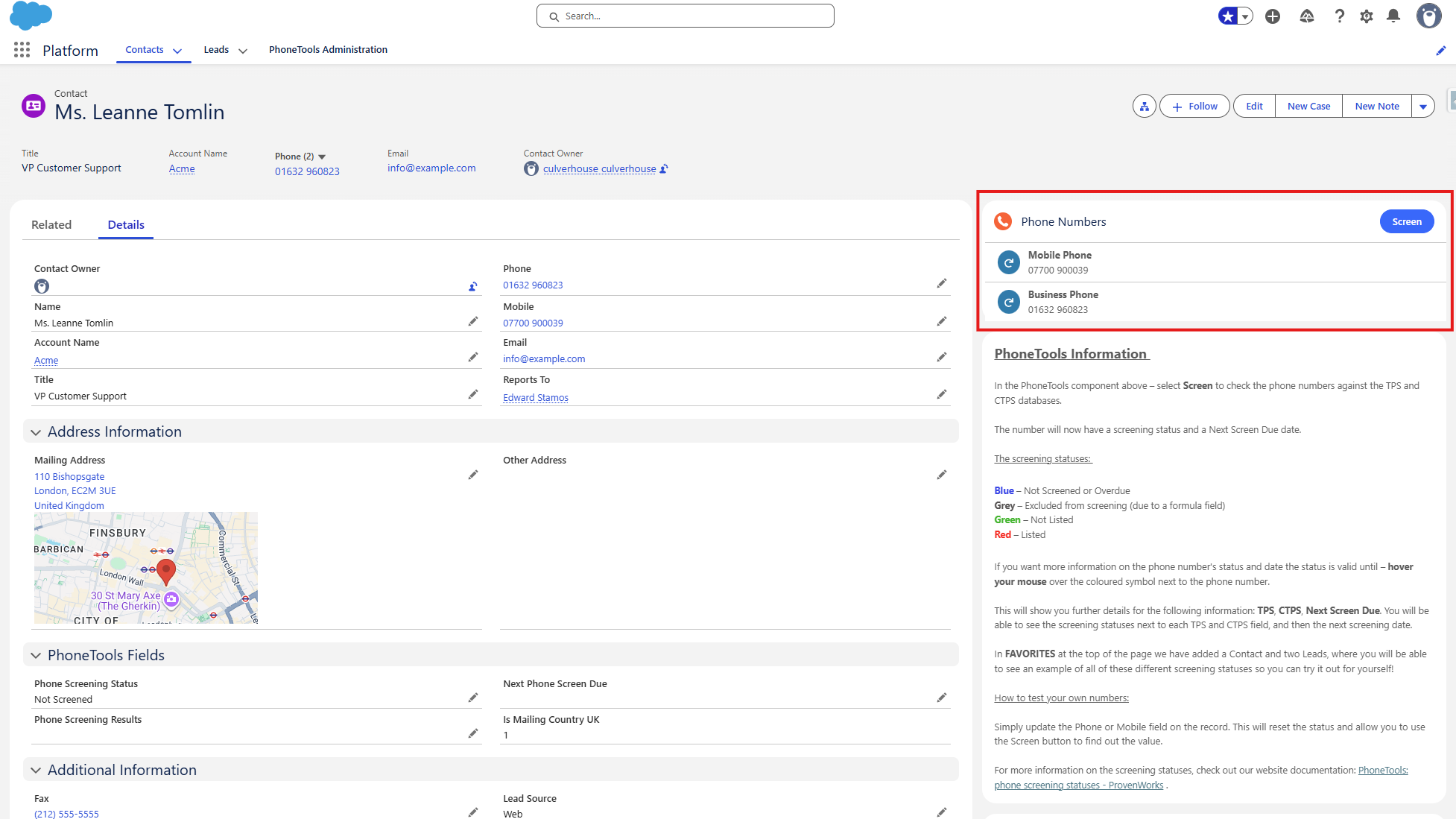
When you open a Contact or Lead record, you’ll find the PhoneTools Lightning component in the top-right of the page.

Below the PhoneTools component are two information blocks that explain: 

  • How the PhoneTools component works, 
  • How the formula field is used to determine whether the record should be screened. 

The PhoneTools features are outlined in these information blocks, but if you would like an in-depth explanation take a look at the PhoneTools Features in your Trialforce org article.

PhoneTools Administration Tab

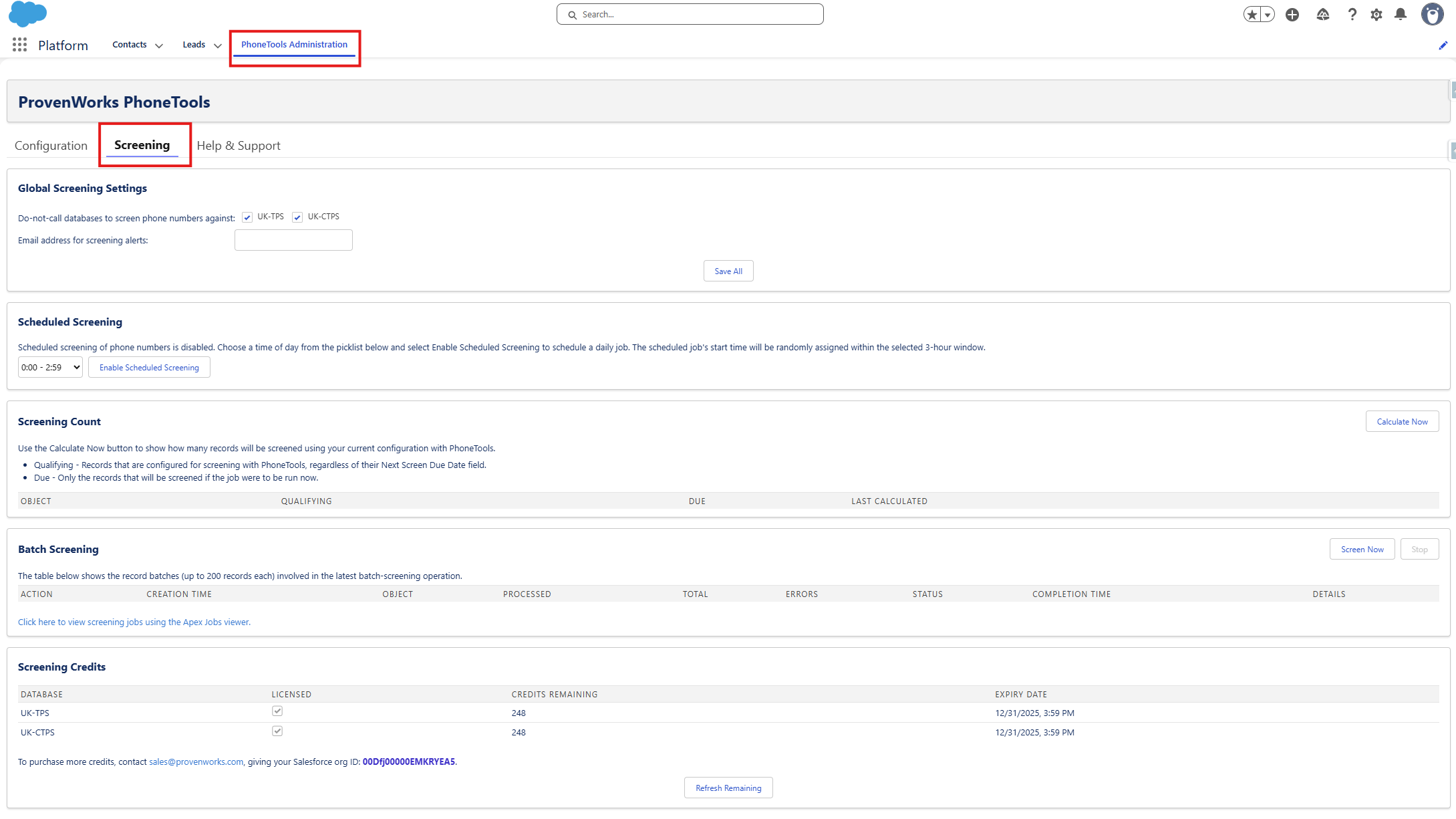
The PhoneTools Administration tab takes you to a Configuration sub-tab. You can see all the objects and fields where PhoneTools screening is enabled. There is also a reference to a custom formula field which provides exclusion from screening for records that meet given criterion.

There is also a Screening page (found along the top options) where you can set up scheduled or batch phone number screening jobs, along with viewing screening settings and credits.

Finally, there is a Help & Support page with links and FAQs. 

What to do in your org

For some introduction tasks to get you acquainted with PhoneTools look at the Tasks to complete on your PhoneTools Trialforce org article. This will guide you through some of the basic features of PhoneTools using the preconfigured Trialforce org – looking at screening records, formula fields and batch screening processes. 

We hope you enjoy exploring PhoneTools and it gives you a clear understanding of how it will help you maintain compliance and manage your phone-based outreach safely and efficiently. If you have any questions or would like further guidance, our team is here to help. 

Tasks to complete in your PhoneTools Trialforce org

Now you have installed the PhoneTools Trialforce org, have a go at the following tasks to get to know the product using our preconfigured data. 

If you haven’t already, get more information on the setup of your Trialforce org by reading the Introduction to your PhoneTools Trialforce org article.

Task 1: Test the screening on record pages 

For this task find and click the Contact Leanne Tomlin from the favourites bookmark in the top right corner of the screen. 

In the PhoneTools Lightning Component located in the top right of the record page you can see the screening status for both Mobile and Business Phone numbers. 

For more information on screening statuses, take a look at PhoneTools features in your Trialforce org.

  • Hover over the blue icons to see the current screening status. 
  • Press Screen in top right corner of the component to screen both numbers. 
  • Now hover over the icons again to see the new screening results. 

You will see that the Mobile Phone number is ‘Not Listed’ on either TPS or CTPS databases so is safe to call. The Business Phone number is marked as ‘Listed’, and by hovering the mouse you can see it is not listed on the TPS database but it is listed on the CTPS database. 

Now try this out for the Lead Jim Steele, which can also be found under the favourites bookmark.  

  • Repeat the previous steps on the Phone number: look at the screening status, press Screen, then look at the new screening status. 

You will see that this number is marked as ‘Listed’, where it is found on the TPS database but not the CTPS. 

  • Edit the record by changing the phone number to 07700 900123. 
  • Notice what changing the number has done to the screening status. 
  • Now click Screen on the record and check the new status. 

Adding or updating a number will automatically reset the screening status to ‘Not Screened’ so it will need to be screened again. 

Task 2: Testing the formula field 

Details on the formula field used in the Trialforce org can be found in the “PhoneTools Formula Field” information block along the right side of the record page. 

For this task, find and click the Lead Andy Smith in the favourites bookmark. 

  • Notice the screening status for this Phone number is Excluded from screening and hover over the icon to see a Next Screen Due field is not relevant in this case. 
  • What happens when you press Screen

You will notice that the component will not screen numbers which are excluded so the status will remain unchanged. 

The Phone number in Andy Smith’s record is excluded because of the formula field placed on the Lead Phone in this org.

For the purpose of seeing how a formula field works, we are going to change this Lead to comply with the PhoneTools formula conditions in place:

  • Edit the Lead Address Country to United Kingdom. 
  • See how the screening status has changed. 
  • Now press Screen and look at the new screening status.

After Screening, the Phone number is shown as ‘Not Listed’ (this makes sense as is not a UK number), the formula had saved an unnecessary screening of a non-UK number which would not have been on the TPS or CTPS databases. 

Task 3: Batch phone screening 

For this task you will have a brief look at how batch phone screening can be implemented, and test this on the Contact and Lead phone numbers preconfigured in the org. 

  • Go to the PhoneTools Administration tab.
  • Select the Screening tab along the top of the page. 

In a production org when you want to automate screening of numbers – you can set up a ‘Scheduled Screening’ which will process all ‘Not Screened’ or ‘Due for Screening’ numbers at a daily time. 

For now we will test an immediate batch job – useful if lots of new numbers have been added to your org at once. 

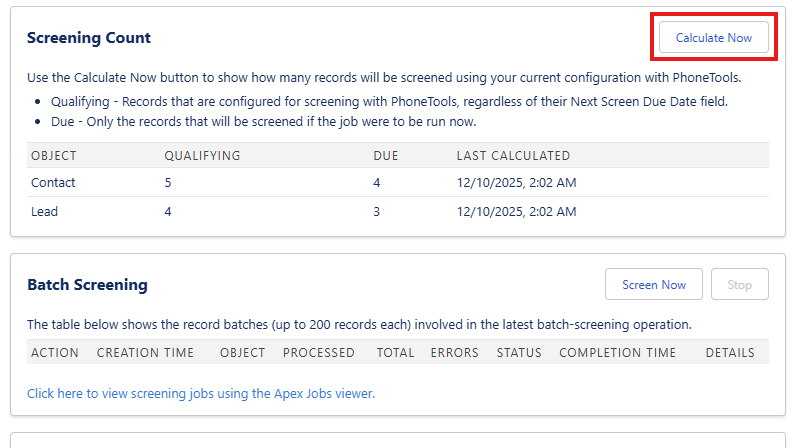
  • It is good practice to check the count first to see how many numbers are due for screening: press Calculate Now next to Screening Count. 
  • The Screening Count now shows you each object with the relative Qualifying numbers and Due numbers. 

The Due number indicates how many numbers would be processed if a batch screening job was run.  

You will notice that the Due number is lower than the Qualifying, this is because you have already screened some numbers in the org, so they do not need to be screened again until 21 days have passed. 

To start the batch job and screen all the Due phone numbers:

  • Next to Batch Screening select Screen Now 
  • This will show you the Object and related Processed jobs in real time throughout the batch job, ending with the Total job count and showing any errors and further details. 

At the end you will see that credits remaining, shown at the bottom of the page, has decreased from the original 250.  

Look through the Contact and Lead tabs to see the new screening statuses of all the records. Where the record still says ‘Not Screened’, view it to check that specific Contact/Lead is excluded from screening by the formula field. 

Note: for easy viewing select List View in the top right and then choose “{Object} for PhoneTools Testing” and pin this list – as this includes the Phone Screening Status in the list view.

For further exploration of the tool, feel free to add your own Contacts or Leads and play around with all of the features.