Overview
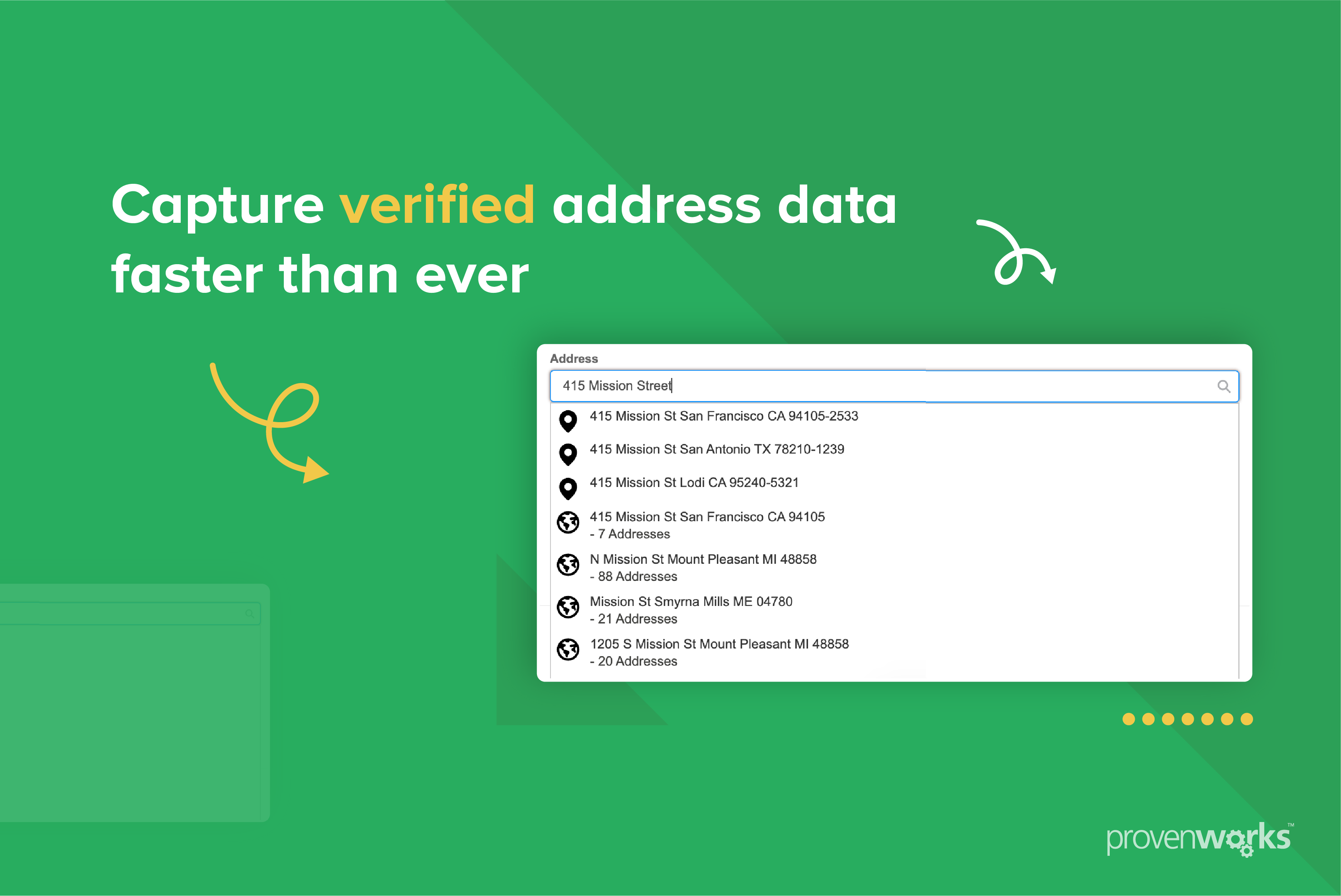
The Address Verification Flow Component (AVFC) by ProvenWorks is a managed-package Lightning Web Component that provides real-time, postal-authority-backed address verification. It can be dropped directly into a Salesforce Flow Screen or wrapped inside your own custom LWC for use in Lightning Record Pages, App Pages, Experience Cloud sites, and other surfaces.
This guide covers the custom LWC wrapper approach — embedding the AVFC inside a component you control, so that you own the surrounding layout, business logic, and data handling. When you handle the addresschange event yourself, the verified address data belongs entirely to your component.
Prerequisites
Before writing any code, ensure the following are in place.
1. Installed Packages
Both of the following AppExchange packages must be installed in your org:
- AddressTools Premium — manages your Address Verification lookups
- Address Verification Flow Component (AVFC) — provides the
pw_avfcnamespace component
2. User Permissions
Each user who will interact with the AVFC wrapper must have access to:
- All Apex Classes prefixed with
pw__avfc - The Visualforce Page
pw__avfc.SessionIdPage - An AVFC licence allocated via Setup → Installed Packages → Manage Licences (unless your org has a site licence)
The easiest way to manage this is to create a Permission Set that grants the above and assign it to the relevant users or profiles.
3. Lightning Web Security (LWS)
Referencing a component from a managed package namespace inside your own LWC requires Lightning Web Security to be enabled:
- Go to Setup → Session Settings
- Enable Use Lightning Web Security for Lightning web components
- Click Save
- Clear your browser cache before testing
Note for older orgs: New orgs created after Spring ’23 have LWS enabled by default. If you are on an older org, check this setting first — it is the most common cause of the cross-namespace error.
4. CSP Trusted Site
The AVFC makes outbound calls to ProvenWorks’ verification API. If you are deploying in an Experience Cloud (Digital Experience) site, you must allow this domain:
- Go to Setup → CSP Trusted Sites
- Find or create an entry for
https://addressvalidation.provenworks.com - Set the Context to All
- Save
This step is not required for internal Lightning Experience pages, but is mandatory for any Experience Cloud surface.
Component Name Reference
The AVFC lives in the pw_avfc namespace. Its component identifier depends on context:
| Context | Identifier |
|---|---|
| Aura / Flow Screen | pw_avfc:addressVerificationFlowBaseComponent |
| LWC HTML template | pw_avfc-address-verification-flow-base-component |
The LWC version uses kebab-case. This is standard LWC naming: namespace and component name are joined by a hyphen, and any camelCase within the component name is also converted to lowercase-hyphen form.
Creating the Wrapper LWC
Step 1 — Scaffold the Component
Open VS Code with the Salesforce Extension Pack, connect it to your org, then run:
SFDX: New Lightning Web Component
Give it a meaningful name (e.g. avfcWrapper). This creates three files under force-app/main/default/lwc/avfcWrapper/:
avfcWrapper/
├── avfcWrapper.html
├── avfcWrapper.js
└── avfcWrapper.js-meta.xml
Step 2 — Configure the Metadata File
Open avfcWrapper.js-meta.xml. The key settings depend on where you intend to deploy the component.
For a Lightning Record Page, App Page, or Home Page:
<?xml version="1.0" encoding="UTF-8"?>
<LightningComponentBundle xmlns="http://soap.sforce.com/2006/04/metadata">
    <apiVersion>65.0</apiVersion>
    <isExposed>true</isExposed>
    <targets>
        <target>lightning__RecordPage</target>
        <target>lightning__AppPage</target>
        <target>lightning__HomePage</target>
    </targets>
</LightningComponentBundle>
For a Flow Screen:
<?xml version="1.0" encoding="UTF-8"?>
<LightningComponentBundle xmlns="http://soap.sforce.com/2006/04/metadata">
    <apiVersion>65.0</apiVersion>
    <isExposed>true</isExposed>
    <targets>
        <target>lightning__FlowScreen</target>
    </targets>
</LightningComponentBundle>
Step 3 — Write the HTML Template
The HTML template references the AVFC component using its kebab-case name. Input attributes are set here. The example below shows a typical configuration — see the AVFC Attribute Reference section for additional available attributes.
<!-- avfcWrapper.html -->
<template>
    <pw_avfc-address-verification-flow-base-component
        use-county="true"
        use-status="true"
        countries="GB,US,CA"
        origin="GB"
        country={countryValue}
        state={stateValue}
        postalcode={postalCodeValue}
        city={cityValue}
        street={streetValue}
        street2={street2Value}
        county={countyValue}
        status={statusValue}
        onaddresschange={handleAddressChange}>
    </pw_avfc-address-verification-flow-base-component>
</template>
Attribute values can be:
- Static strings in quotes (e.g.
countries="GB,US,CA") - Bound to reactive JS properties using curly braces (e.g.
country={countryValue}) - Omitted entirely if you don’t need that field
Step 4 — Write the JavaScript Controller
Minimal example — reading verified address data:
// avfcWrapper.js
import { LightningElement, track } from 'lwc';

export default class AvfcWrapper extends LightningElement {

    // Pre-population values (optional — remove if not needed)
    countryValue = '';
    stateValue = '';
    postalCodeValue = '';
    cityValue = '';
    streetValue = '';
    street2Value = '';
    countyValue = '';
    statusValue = '';

    // Stores the verified address returned by the AVFC
    @track verifiedAddress = {};

    handleAddressChange(event) {
        // The AVFC fires an 'addresschange' event.
        // The verified address is available at event.detail["address"].
        this.verifiedAddress = event.detail["address"];

        // From here, do whatever your use case requires:
        // - Save to a record via Apex
        // - Dispatch a custom event to a parent component
        // - Update reactive properties for display
        console.log('Verified address:', JSON.stringify(this.verifiedAddress));
    }
}
Practical example — saving to a Salesforce record via Apex:
import { LightningElement, api, track } from 'lwc';
import saveAddress from '@salesforce/apex/AddressController.saveAddress';

export default class AvfcWrapper extends LightningElement {

    @api recordId; // If on a Record Page, the current record ID is injected automatically
    @track verifiedAddress = {};
    @track isSaving = false;
    @track saveError = null;

    handleAddressChange(event) {
        this.verifiedAddress = event.detail["address"];
    }

    handleSave() {
        this.isSaving = true;
        saveAddress({
            recordId: this.recordId,
            address: JSON.stringify(this.verifiedAddress)
        })
        .then(() => {
            this.isSaving = false;
        })
        .catch(error => {
            this.saveError = error.body.message;
            this.isSaving = false;
        });
    }
}
Practical example — communicating upward via a custom event:
import { LightningElement } from 'lwc';

export default class AvfcWrapper extends LightningElement {

    handleAddressChange(event) {
        const address = event.detail["address"];

        // Dispatch upward to a parent LWC
        this.dispatchEvent(new CustomEvent('addressverified', {
            detail: { address },
            bubbles: true,
            composed: true
        }));
    }
}
The addresschange Event Payload
When a user selects a verified address, the AVFC fires an addresschange event. The payload is accessible at event.detail["address"] and contains the following keys:
| Key | Description |
|---|---|
street |
First line of the street address |
street2 |
Second line of the street address (if use-second-street-line is enabled) |
city |
City / town |
state |
State or province |
postalcode |
Postcode / ZIP code |
country |
Country |
county |
County (if use-county="true") |
status |
Verification status (if use-status="true") |
AVFC Attribute Reference
For the full list of available attributes (boolean toggles, country & locale, pre-population values, label overrides, styling, and events), see Address Verification Flow Component Available Parameters. All attribute names must be in kebab-case when used in an LWC HTML template.
Deployment
Once your three files are ready, deploy the component to your org:
SFDX: Deploy This Source to Org
or via the CLI:
sf project deploy start --source-dir force-app/main/default/lwc/avfcWrapper
Then place your wrapper component on a page:
- Lightning Record/App Page: Open the Lightning App Builder, search for your component by name, and drag it onto the canvas
- Flow Screen: Open a Screen Flow, search for your component in the Components panel, and drag it onto a screen element
- Experience Cloud: Open Experience Builder, find the component in the Components panel, and add it to the page
Troubleshooting
“Attempting to reference cross-namespace module pw_avfc in c”
This error means Lightning Web Security is not enabled. Go to Setup → Session Settings, enable LWS, save, and clear your browser cache.
Component renders but shows no results on search
- Confirm AddressTools Premium has Address Verification lookups enabled
- Check user has Apex class and Visualforce page permissions for
pw__avfc - If in Experience Cloud, confirm the CSP Trusted Site entry is in place
- Check that a licence has been allocated to the user (Setup → Installed Packages → Address Verification Flow Component → Manage Licences)
Verified status resets after editing the address record
This is expected behaviour. AddressTools appends a Zero-Width Space character (U+200B) to the status value to distinguish freshly-verified addresses from previously-verified ones. If you need to preserve Verified status after a programmatic update, append U+200B to the status value before saving the record.
Implementing in an OmniScript Instead?
If you need to embed the AVFC inside a Vlocity / OmniStudio OmniScript rather than a standalone custom LWC, a different wrapper approach is required. See the ProvenWorks guide: How To Use the Address Verification Flow Component (AVFC) Within an OmniScript.