



The PhoneTools Trialforce org gives you a way to explore all the features of PhoneTools without the needing a custom installation or setup. Use it to evaluate how PhoneTools can help you manage phone number screening against TPS and CTPS databases in your Salesforce environment before committing to a full implementation.
If you haven’t already, head to the Salesforce AppExchange and sign up for a PhoneTools Trialforce org to get started.
How the org is set up
When you first log in to your Trialforce org, navigate to the Platform app shown below. You’ll see tabs for Contacts, Leads and PhoneTools Administration.
We have prepopulated this org with sample Contacts and Leads (including telephone numbers) so you can begin testing right away. Make sure to select List View in the top right of the Contact page, similarly for Leads.

You can see all Contacts by selecting the “Contacts for PhoneTools Testing” list, similarly for Leads.
Feel free to pin these list views for ease, as they include a column for ‘Phone Screening Status’ so you can see immediately which records have been screened.

We have also created three ‘Favourites’ – sample Contact/Lead records – so you can quickly access representative examples. These are accessed from the top-right of the screen in the dropdown next to the favourites star.

Record Pages
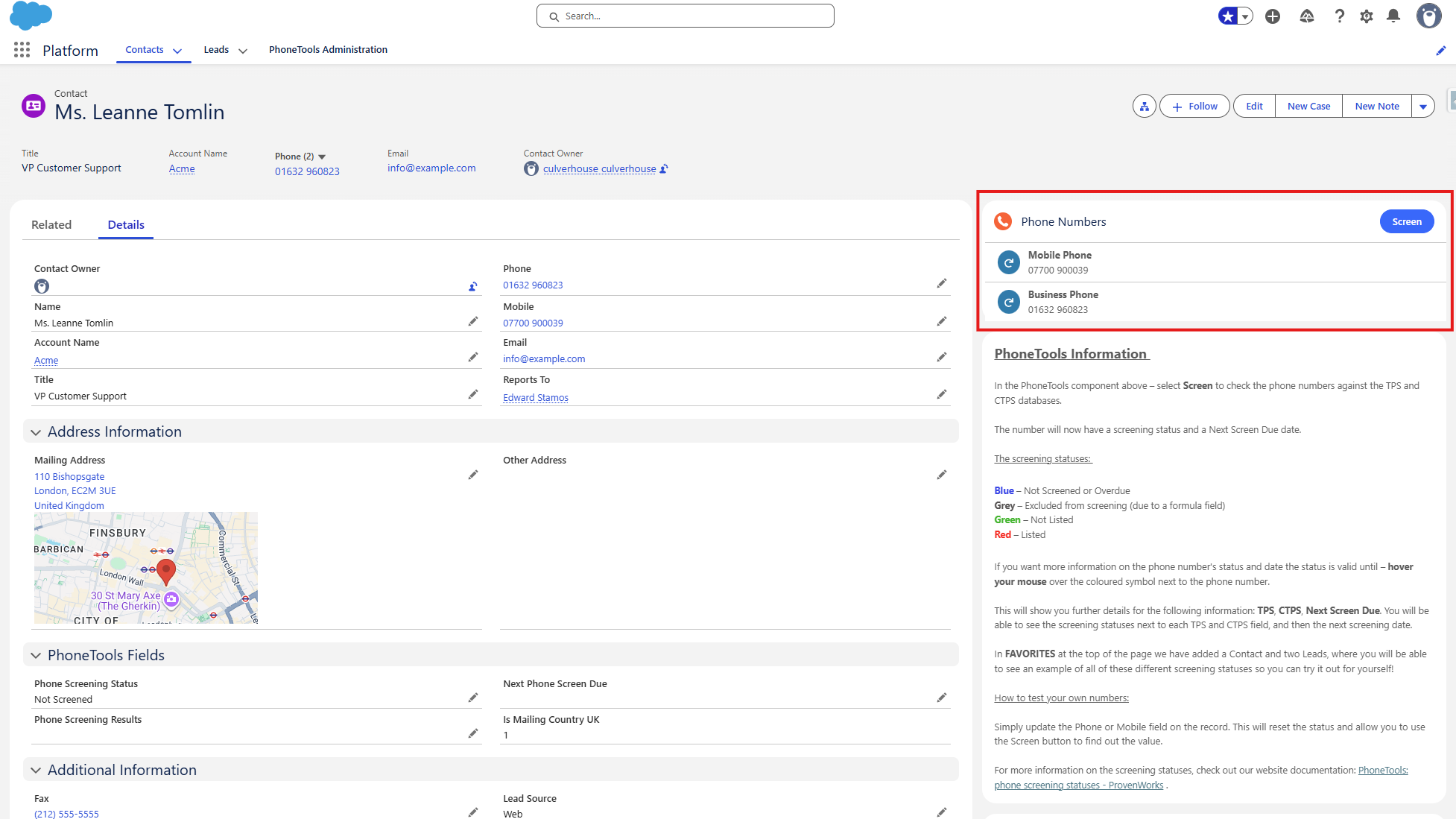
When you open a Contact or Lead record, you’ll find the PhoneTools Lightning component in the top-right of the page.
Below the PhoneTools component are two information blocks that explain:
- How the PhoneTools component works,
- How the formula field is used to determine whether the record should be screened.
The PhoneTools features are outlined in these information blocks, but if you would like an in-depth explanation take a look at the PhoneTools Features in your Trialforce org article.
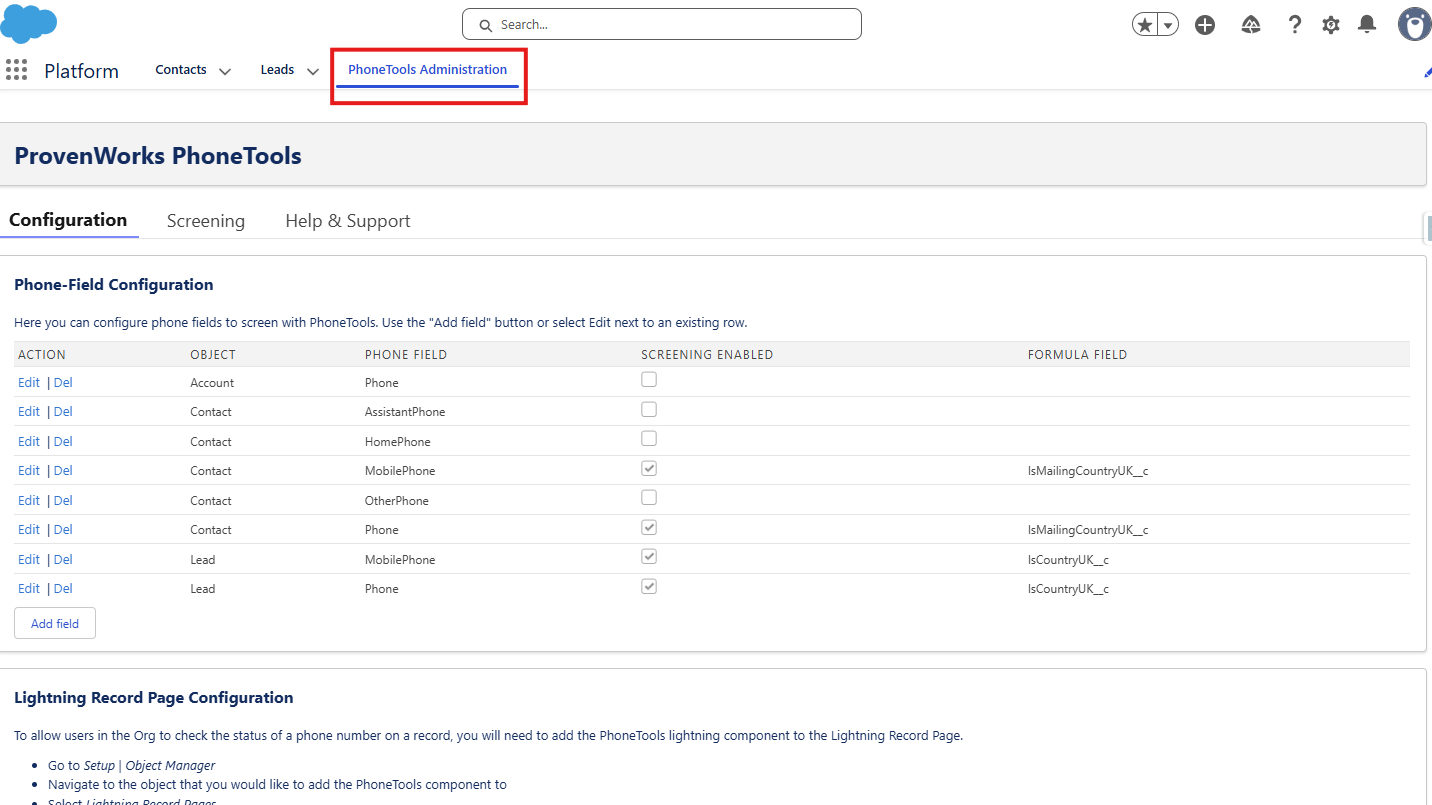
PhoneTools Administration Tab
The PhoneTools Administration tab takes you to a Configuration sub-tab. You can see all the objects and fields where PhoneTools screening is enabled. There is also a reference to a custom formula field which provides exclusion from screening for records that meet given criterion.
There is also a Screening page (found along the top options) where you can set up scheduled or batch phone number screening jobs, along with viewing screening settings and credits.
Finally, there is a Help & Support page with links and FAQs.
What to do in your org
For some introduction tasks to get you acquainted with PhoneTools look at the Tasks to complete on your PhoneTools Trialforce org article. This will guide you through some of the basic features of PhoneTools using the preconfigured Trialforce org – looking at screening records, formula fields and batch screening processes.
We hope you enjoy exploring PhoneTools and it gives you a clear understanding of how it will help you maintain compliance and manage your phone-based outreach safely and efficiently. If you have any questions or would like further guidance, our team is here to help.