Blog

Take Your Address Data Further with AddressTools v10

AddressTools v10 introduces new data points that expand the address data available within Salesforce®. This release enriches records with deeper geographical context through new capabilities like ‘Geolocation’ and ‘Property Use’ values, alongside improvements to international address handling, the user experience for duplicate detection, and updated package security.

Here is what we will cover:

  • Geolocations with verified address data
  • Property Use for verified addresses
  • Streamlining state and province data for international addresses
  • Addition of ISO Currency Code to each country record
  • Alignment of duplicate detection with the Salesforce experience
  • Updated security and permission sets (important breaking change note)
  • API version 66.0 updates
  • How to upgrade
  • How to get access to geolocation functionality

Geolocations with verified address data

AddressTools v10 introduces geolocations as an add-on feature, giving you latitude and longitude directly alongside your verified address data. When an address is verified, AddressTools can now return geolocation coordinates, making it easier to power mapping, territory planning, proximity searches, and location-based automations in Salesforce.

Example uses include:

  • Plotting accounts and leads on maps for your sales teams.
  • Driving “nearest store/office” lookups based on a contact’s location.
  • Enabling service routing and dispatch based on real distances rather than just ZIP or postcode.

Geolocation is available as a separately licensed capability. Find information at the end of the article on how to try out geolocations.
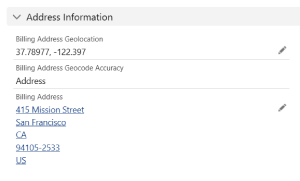
Latitude and longitude fields on a Salesforce address record using AddressTools 10.0

Introducing ‘Property Use’ to identify residential and commercial addresses

AddressTools 10.0 introduces the Property Use field, a new data point that is automatically populated when an address is verified. This field classifies the property at a given address as Residential, Commercial, or Unknown, giving you richer context about the addresses in your Salesforce org.

Example uses include:

  • Segmenting accounts or leads by property type for targeted sales or marketing campaigns.
  • Routing service cases differently based on whether the property is a residential or a commercial premises.
  • Improving data quality checks by flagging unexpected property types, such as a B2B account registered at a residential address.

Property Use data is available for addresses in the following countries: United States, United Kingdom, Canada, Australia, Belgium, and the Netherlands. For addresses outside of these six countries, the Property Use field will return Unknown.

Property Use is included with verification in AddressTools Premium 10.0 at no additional cost. The field populates automatically during the standard verification process, alongside your existing address data once the field has been created and mapped in your address block.
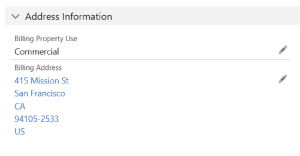
Property Use field showing commercial classification in Salesforce AddressTools

Streamlining state and province data for international addresses

AddressTools v10 introduces updated logic for handling administrative areas in countries where a state or province is not required for mailing purposes. In previous versions, certain addresses might return a duplicated value in both the City and State/Province fields. This update ensures that if a country does not require a state for a valid address, the field will remain null to prevent redundant data entry and improve overall record clarity.

An example of this change in action:

  • Previous Behaviour: An address in Sheffield would return Sheffield as the City and Sheffield as the State.
  • New Behaviour: The tool identifies that a State/Province is not required for a GB mailing address. It will return Sheffield as the City and leave the State/Province field null.
  • This refinement provides several benefits:
  • Cleaner Data: Eliminates redundant or unnecessary geographical data in your Salesforce org.
  • Mailing Accuracy: Ensures custom address labels and digital exports follow the specific postal standards of the destination country.
  • Improved Reporting: Prevents “State” reports from being cluttered with duplicate data for countries that do not utilise that hierarchy.

This update to address verification logic is a service-level change. As a result, it will affect all versions of AddressTools currently in use, ensuring consistent data handling across your entire environment.

Currency ISO Codes for each country

AddressTools v10 now includes Currency ISO values for every country record provided with the product. Each country entry now lists its official three-letter ISO 4217 currency code. For example: “USD” for the United States, “GBP” for the United Kingdom, and “EUR” for countries using the Euro.

This enhancement makes it easier to:

  • Align address and country data with financial or pricing systems that rely on ISO-standard currency codes.
  • Power quoting workflows that select the appropriate currency directly from a record’s country.
  • Provide consistent currency references for reporting and automation.

The new currency field is populated during the data installation stage of setup. For existing implementations, you will need to upgrade your package to v10, then navigate to the AddressTools Administration page and run Update Data.
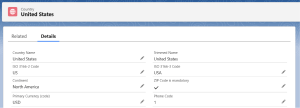
AddressTools 10.0 currency feature showing ISO 4217 country codes like USD, GBP, and EUR to support global address data, financial system integration, and automated currency selection workflows.

Alignment of duplicate detection with the Salesforce experience

AddressTools includes an override component that replaces the standard Salesforce new record modal, providing interactive address verification at the point of entry. In AddressTools v10, we have updated the override component so that duplicate detection now aligns closely with Salesforce’s standard new record behaviour.

You can expect:

  • Duplicate alerts that appear in the same style and context as native Salesforce.
  • A smoother experience for users who switch between the override and standard new record screens.
  • Consistency in how duplicates are identified and presented to the users, reducing confusion and improving user experience.

No configuration changes are required. The enhanced duplicate behaviour is included automatically with the updated override component in AddressTools Premium v10.

AddressTools 10.0 override component with Salesforce-style duplicate detection, featuring real-time alerts during address entry, improved data accuracy, and a seamless user experience consistent with standard Salesforce record creation.

Updated permission sets and security (important)

We have updated our permission model so AddressTools runs some of the core functionality in system mode, ensuring our code can always access the managed package objects it needs without overprovisioning your users.

What this means:

  • AddressTools logic now runs with appropriate system-level access to its own objects.
  • You should no longer rely on AddressTools packaged permission sets to grant users access to AddressTools objects (see important note below).
  • Instead, we recommend explicitly granting object-level and field-level access via your own permission sets and profiles, aligned with your security model.

Important: If your org currently depends on the packaged permission sets to provide access to AddressTools objects, you may see breakages or access errors after upgrading.

Before upgrading in production:

  1. Review if users rely on the AddressTools packaged permission sets to gain access to fields on the packaged objects outside of what AddressTools functionality requires.
  2. If yes, create or adjust your own permission sets to grant the required access to objects and fields used by those users.
  3. Test these changes in a sandbox with the 10.0 package installed.

API version 66.0 updates

All AddressTools Apex classes and components have been updated to API version 66.0, aligning AddressTools Premium with the latest Salesforce platform capabilities. This helps ensure compatibility with recent Salesforce releases and positions you for future platform enhancements without needing to worry about legacy API behaviour.

How to upgrade to AddressTools Premium v.10:

To access these latest features, you simply need to upgrade the managed package from the Salesforce AppExchange.

Visit AddressTools on the AppExchange

Need more help? We have a handy guide which will walk you through best practice when upgrading packages.

I want to try verification with geolocation data, what should I do?

Unlock the full potential of verified addresses by adding geolocation data to your records. Whether used to optimise service routes or improve your territory planning, we are ready to help get you started. Get in contact with your ProvenWorks account manager or contact us now to discuss enablement and pricing.

AddressTools Premium: Configure geocoding

Geocoding in AddressTools Premium is the process of returning longitude and latitude values alongside a verified postal address. Geocoding enables you to place records on maps, calculate distances, support territory management, and automate location-based tasks within Salesforce.

Access to geocoding functionality requires Address and Geocoding lookups alongside your AddressTools Premium licenses. If your organisation does not currently have access to geolocations, or you would like more information about enabling this feature, contact sales@provenworks.com.

AddressTools geocoding vs Salesforce Data.com geocoding

While Salesforce offers native geocoding for standard address fields (Account Billing & Shipping, Contact Mailing, and Lead Address), the Salesforce Data Integration Rules run asynchronously and restrict geocoding to these specific objects. The platform provides limited control over when it generates coordinates or how you customise the integration.

In contrast, AddressTools Premium returns latitude and longitude instantly as part of the address verification process, works consistently across any object you enable it for, and gives you immediate geolocation data tailored to your workflows. For best results on standard objects where Data.com geocoding is available, we recommend disabling the native Salesforce Data Integration Rules geocoding, via Data Integration Rules in setup, to avoid conflicts or delays and rely solely on AddressTools’ geocoding.

How to configure geocoding

Geocoding will be enabled in your environment if: 

  • Your org has Address and Geocode lookups.
  • You have configured your address blocks to include Longitude, Latitude, and Geocode Accuracy fields.

Assuming that your purchase is active or you’re utilising a geocode trial, the following steps will describe how to edit an existing address block to include the geocoding fields.

This example uses the Account Billing Address fields, the fields used are provided as standard out of the box with Salesforce, however the same steps can be used on custom fields. 

  1. Navigate to AddressTools Administration | Address Blocks.
  2. Locate the specific address block you wish to configure from the table.
  3. Select the dropdown menu on the right of the row and click Edit.
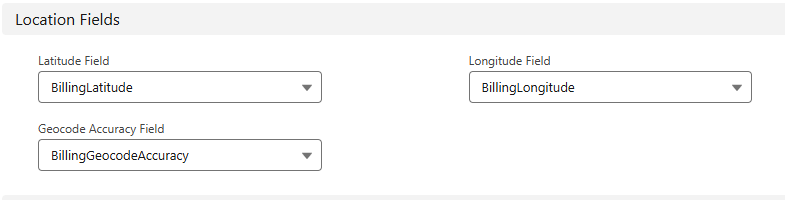
  4. Find the Location Fields section to map the fields:
    • Latitude Field: Select the Latitude field from the dropdown menu (BillingLatitude).
    • Longitude Field: Select the Longitude field from the dropdown menu (BillingLongitude).
    • Geocode Accuracy Field: Select the Geocode Accuracy field from the dropdown menu (BillingGeocodeAccuracy).
  5. Save the changes to apply the geolocation settings.

Testing AddressTools geocoding

When setup of verification has been complete, you’re able to test geocoding by following the steps below:

  1. Verify an Address:
    Perform address verification via PowerSearch or your configured automated process.
  2. Check the Geocode Fields:
    After the verification completes, inspect the Latitude, Longitude, and Geocode Accuracy fields that you configured in the address block to confirm they contain valid values. You can do this by retrieving the values via an SOQL query. Be aware that verification through PowerSearch will return ‘Unknown’ in the Geocode Accuracy field. Other values will be populated when using automated address verification.
  3. Verify Field Reset Behavior:
    AddressTools will reset geolocation fields when any address field changes. This ensures geolocations values always aligns with the verified address. To test this:
    • Make a modification to an address field (for example, remove or alter the street line), and save the record.
    • The Latitude, Longitude, and Geocode Accuracy fields should now be NULL (empty).

Back to the AddressTools Premium installation walkthrough

How to: Grant Guest Users Access with Sharing Rules

This article will cover how to configure Sharing Settings to allow external Guest users access to the Country object’s records installed with AddressTools. This configuration is essential to ensure your external users can utilise the full functionality of the product.

Note: In Salesforce, external users such as Guest users do not have “View All” permissions by default. Because of this restriction, the standard AddressTools Permission Sets cannot be assigned to these users. You must instead complete the sharing configuration outlined below to provide the required access to the functionality.

Configure the Sharing Rule Criteria

From Setup enter and select Sharing Settings.

Locate the section Country Sharing Rules and click New.

Follow these steps to define the rule:

  • Step 1: Enter a Label and Rule Name that is descriptive (e.g. Share Countries with Guests).
  • Step 2: For the Select your rule type section, select Guest user access, based on criteria.
  • Step 3: In the Select which records to be shared section, set the following:
    • Field: Country Name
    • Operator: not equal to
    • Value: (Leave this box blank)
  • Step 4: In the Select the users to share with section, select the specific user license you need to provide access to (e.g. Partner Community User).
  • Select Save.

Assigning Permissions to Guest Users

If you are still experiencing issues with the Guest user when using AddressTools, you may need to assign additional permissions. The Guest user requires specific permissions to use the tool. A full list of required permissions can be found in: How to: deploy AddressTools Premium to users in your organization – ProvenWorks.

How to: Configure functionality for a Custom Address block

This article will cover how to create and configure your custom address block with AddressTools allowing for all trigger based and interactive functionality. 

Note: Custom address block functionality requires AddressTools Premium. If you use AddressTools Free, start a Premium trial.  

In the following example, we will be covering how to configure a custom address block that we have created on a custom object that uses individual custom fields for each address field. The same steps can be used with a custom address field type; however we recommend using individual field elements due to the limitations that Salesforce State & Country/Territory picklists enforce.  

Task overview: 

  1. Create the address block fields on the object.
  2. Create the address verification fields (Premise-Level only).
  3. Configure the address block and verification in AddressTools.
  4. Create the custom trigger.
  5. Optional: Add the override component.
  6. Optional: Add the on page component.

Create an address block in the custom object

The following steps assume you are taking the approach of using individual fields for each address element. It is recommended to review this step even if you have already created your address fields. This is the ensure each field is of the right type before moving forward with the rest of the configuration.  

  • Go to Setup | Object Manager | [Your Object] | Fields & Relationships.
  • Select New to create each of the following address block fields: 
    • Street – Text Area (255).
    • City – Text (255).
    • State – Text (255).
    • Country – Text (255).
    • Postal Code – Text (255).

Create address verification fields (needed for Premise-Level)

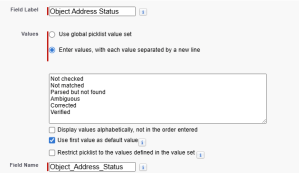
If you want to utilize address verification functionality with the new address block, you will be required to create an Address Status field at a minimum. For optional fields such as County or Address Label that are also populated when using Address Verification, see the article: Creating additional fields for address verification.

  • Go to Setup | Object Manager | [Your Object] | Fields & Relationships. 
  • Select New.
  • Choose the data type: Picklist.
  • Select Next.
  • Add a Field Label (we suggest the address type plus address status, i.e. Billing Address Status) 
  • Select Enter values, with each value separated by a new line.
  • Add the following values to the text area: 
    • Not checked *mark as the default value 
    • Not matched 
    • Parsed but not found 
    • Ambiguous
    • Verified 
  • Uncheck Restrict picklist to the values defined in the value set

  • Select Next.
  • Provide visibility to all the users who will be verifying addresses, this can also be handled in a permission set afterward if preferred. 
  • Select Next and Save.

Configure address block and verification.

With the objects and fields created, it is now essential to map them with AddressTools via the Administration page. 

  • Go to App Launcher | AddressTools Administration | Address Blocks.
  • Select Add, choose [Your Object] from the dropdown.
  • If you desire functionality on a specific record type, choose the record type from the options. Leaving this blank will apply the functionality to all. 
  • Select Next.
  • In Postal Address Fields, complete each dropdown with the corresponding API name from your object.
  • In Additional Address Fields, complete the Status Field (and any additional fields) by choosing the corresponding object API name from the dropdown. 
  • If necessary, in Address Verification Options, select Enable Premise-Level Address Verification.
  • Enable settings as required for the address block and Save

Create custom trigger

A trigger is required on the objects that contain address fields that are configured with AddressTools. Without the trigger, most functionality will not fire and other functionality may appear to not behave as intended. 

  • Go to Setup | Object Manager | [Your Object] | Triggers. 
  • Click New to create a trigger. 
  • Replace the default code in the text field with the following code snippet: 
trigger ValidateOBJECTLABELCountryFields on OBJECTAPI (before insert,
before update) { 
   pw_ccpro.CountryValidator2.Validate (Trigger.new, Trigger.oldMap);
}
  • In this code snippet, replace OBJECTLABEL with the object name and OBJECTAPI with the correct API name. 
  • Save your new trigger. 

How to add the override component 

The AddressTools Override component is an advanced lightning component built to replace the standard “New Record” popup that your users experience when creating a new record in Salesforce. 

To override the New Record model in Salesforce Lightning: 

  • Navigate to Setup | Object Manager | [Object to override] | Buttons, Links and Actions. 
  • For the New button, select the arrow to reveal options and choose Edit. 
  • Set Lightning Experience Override to Lightning Component. 
  • Choose pw_ccpro__AddressToolsOverride from the picklist. 
  • Select Save.

Repeat the above steps for all of the objects you want to override the new record model with. 

How to add the on page component 

The AddressTools Record Page Component is your one-stop widget for handling anything address related on a record. The component is designed to sit on a lightning record page where an address block exists giving your users quick access to everything they need without distraction. 

To add the AddressTools Record Page Component to a lightning record page: 

  • Navigate to Setup | Object Manager | [Object] | Lightning Record Pages
  • Select New or if a Lightning Record Page already exists, select Edit. 
  • Drag the AddressTools Component from the components list onto the layout. 
  • Choose the Address block. 
  • Optionally, type into the Component header title to add a custom title. 
  • Select Save.

If the page has not yet been activated, a prompt will appear asking you to activate it. Follow the steps below to assign the page in the organization. 

  • Select Activate.
  • The page can be assigned based on different levels, for example set the Org Default by pressing Assign as Org Default
  • Review the page assignment changes. 
  • Select Save

How to: Solve “Address verification returning ‘Verified’ with a warning symbol”

If there is a warning symbol when an address is “Verified”, it is usually because the AddressTools trigger isn’t enabled for the object. Standard objects can use the built-in triggers, while custom objects will require a custom trigger. 

How to fix it? 

  1. Enable the provided trigger for standard objects: Account, Contact, Contract, Lead, or;
  2. Create a trigger for custom objects. 

Step-by-step resolution guide: 

1. Turn on triggers for supported standard objects.

  • Go to AddressTools Administration | Settings. 
  • In Trigger Settings, select Enable {Object} Trigger and save.  

Note: supported objects are Account, Contact, Contract, Lead.

2. Create a trigger for a custom object. 

  • Go to Setup | Object Manager | [Your Object] | Triggers
  • Click New to create a trigger. 
  • Replace the default code in the text field with the following code snippet: 
trigger ValidateOBJECTLABELCountryFields on OBJECTAPI (before insert,
before update) { 
   pw_ccpro.CountryValidator2.Validate (Trigger.new, Trigger.oldMap);
}
  • In this code snippet, replace OBJECTLABEL with your object name and OBJECTAPI with the API name. 
  • Save your new trigger. 


If you are still experiencing issues and need assistance, contact support@provenworks.com. 

How to: Solve “Report isn’t visible for selection in the Batch Address Verification app”

If a report isn’t visible within the Batch Address Verification app, this is usually due to the report being saved in the wrong folder or the report is missing the Record ID field.

How to fix it?

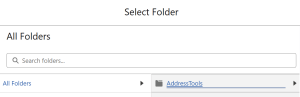
  1. Save the report in the AddressTools folder. 
  2. Add the Record ID field to the report. 

Step-by-step resolution guide:

1. Make sure the report is saved in the AddressTools folder.

  • Go to Reports | [Your Report] | Edit. 
  • In the dropdown next to Save, select Properties. 
  • Under Folder, choose Select Folder. 
  • Go to All Folders | AddressTools. 
  • Click Select Folder at the bottom of the page, then save. 

2. Include the Record ID field in the report.

  • Go to Reports | [Your Report] | Edit. 
  • In the left sidebar, select Outline. 
  • In Columns, add the relevant {Record} ID (e.g. for Accounts add Account ID). 
  • Save the changes making sure it is in the correct folder from Step 1. 

If you are still experiencing issues and need assistance, contact support@provenworks.com . 

How to: Solve “US states are standardizing to full names, but should use ISO codes”

This typically occurs when the United States country setting is configured to use state names instead of codes, or when state standardization isn’t enabled for the address block.

How to fix it?

  1. Set the United States to use ISO state codes at the country level. 
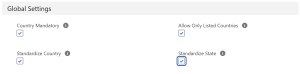
  2. Turn on Standardize State for the specific address block. 

Step-by-step resolution guide:

1. Configure the country to use ISO codes for states. 

  • Go to AddressTools | Countries.  
  • Select All and find the relevant country from the list (United States). 
  • In Preferences, select Use Subcountry Code in State field and save.

2. Enable standardization on the address block.

  • Go to AddressTools Administration | Address Blocks.
  • Click  Edit next to the relevant object’s address block. 
  • In Global Settings, check Standardize State and save. 

If you are still experiencing issues and need assistance, contact  support@provenworks.com. 

How to: Solve “Country isn’t standardizing to the full name when saving a record with AddressTools”

If the country value doesn’t standardize, it’s usually because the AddressTools trigger isn’t running on that object or standardization isn’t enabled for the package or address block.

How to fix it?

  1. Enable the trigger for your object.
  2. Turn on standardization and choose your country format.
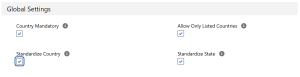
  3. Turn on Standardize Country for the specific address block.

Step-by-step resolution guide:

1. Make sure the AddressTools trigger is on for your object. 

2. Turn on standardization and choose the country format. 

  • Go to AddressTools Administration | Settings.
  • In Feature Enablement, select Standardization Enabled. 
  • Set Country Standardization Format to Name (or other choice) and save.

3. Enable standardization on the address block. 

  • Go to AddressTools Administration | Address Blocks. 
  • Click Edit next to the relevant object’s address block.
  • In Global Settings, check Standardize Country and save.

If you are still experiencing issues and need assistance, contact support@provenworks.com.

How To: Edit a ‘Verified’ Address and Retain Its Status

When editing an address marked as Verified, it’s important to understand how the system handles verification status. By default, any modification to a Verified address will cause its status to revert to Not Checked. This behavior is intentional and helps maintain data integrity during address verification. 

How Address Verification Works 

The address verification tool sets an address status to: 

Verified + a Zero-Width Space (ZWSP) character (U+200B) 

This invisible character allows the system to distinguish between: 

  • An address that was already verified before the current transaction. 
  • An address that was verified as part of the current transaction. 

Trigger Behavior 

When the trigger runs: 

  • It checks for the ZWSP character. 
  • If present, it knows the address has already been verified in the current context. 
  • It removes the ZWSP and does not revert the status to Not Checked. 

How to Preserve ‘Verified’ Status After Editing 

To retain the Verified status after editing an address: 

  1. Check if the status is Verified. 
  2. Append a Zero-Width Space (U+200B) character to the end of the status. 
  3. Save the updated record. 

This ensures the verification system recognizes the address as already verified and prevents the status from resetting. 

Example 

Before saving an updated verified address: 

Status: “Verified​” ← Includes ZWSP (U+200B) at the end
 

Without the ZWSP, the trigger assumes it’s an outdated verification and will reset the status. 


Ensuring Data Accuracy and Compliance: How AddressTools Supports UK Higher Education Institutions 

The Importance of Accurate Data in Higher Education 

In the realm of UK Higher Education Institutions (HEIs), maintaining precise and reliable data is not just a matter of operational efficiency but a statutory obligation. The Higher Education Statistics Agency (HESA) mandates that HEIs submit comprehensive and accurate data annually, encompassing student demographics, course details, and contact information. Ensuring the accuracy of this data is paramount, as discrepancies can lead to non-compliance, financial penalties, and a tarnished institutional reputation. 

Understanding HESA Reporting Requirements 

HESA serves as the central body responsible for collecting and analysing data about higher education in the UK. HEIs are required to provide detailed information, including: 

  • Student Personal Details: Names, dates of birth, and contact addresses.
  • Course Information: Enrolment figures, course durations, and qualifications awarded.
  • Staff Data: Employment details, roles, and remuneration. 

Accurate address data is a critical component of these submissions, influencing funding allocations, policy decisions, and institutional benchmarking. Errors in address information can lead to misdirected communications, flawed statistical analyses, and potential non-compliance with statutory obligations. HEIs must adhere to HESA’s Data Collection Standards to ensure consistency and accuracy in reporting. 

Challenges in Maintaining Accurate Address Data 

HEIs often grapple with several challenges related to address data management:

  1. Data Entry Errors: A study revealed that approximately 17% of student addresses submitted by a Higher Education institution were incorrect, underscoring the prevalence of manual input errors. (AFD Software
  1. Inconsistent Formatting: The absence of standardised address input protocols can lead to inconsistencies, complicating data integration and reporting. 
  1. Dynamic Student Populations: Data indicates that nearly 60% of full-time students registered with a General Practitioner (GP) remain listed at their family addresses, despite residing elsewhere during their studies. (Office for National Statistics

Addressing these challenges is essential to uphold data integrity and ensure compliance with HESA reporting requirements and other statutory obligations. 

Introducing AddressTools: A Solution for HEIs 

ProvenWorks’ AddressTools is a comprehensive solution designed to enhance address data quality within Salesforce, offering features that directly address the challenges faced by HEIs: 

1. Real-Time Address Verification 

AddressTools verifies addresses at the point of entry, ensuring that only accurate and complete information is recorded. This proactive approach minimises the risk of errors propagating through institutional systems.

2. Standardisation of Address Formats 

The tool enforces consistent address formatting across all records, aligning with postal standards and facilitating seamless data integration and reporting.

3. Integration with Salesforce Education Data Architecture (EDA) 

AddressTools seamlessly integrates with Salesforce’s EDA, enabling HEIs to manage address data effectively within their existing CRM workflows. This integration supports the unique data modelling requirements of educational institutions.

4. Compliance Support 

By maintaining accurate and standardised address data, AddressTools aids HEIs in meeting HESA’s stringent data submission standards, thereby ensuring compliance and reducing the risk of penalties. 

Enhancing Data Quality at the University of Alabama at Birmingham 

The University of Alabama at Birmingham implemented AddressTools to improve their address data management. While this HEI is not a UK one, it is facing similar challenges and looks for ways to reduce friction when students submit or update their addresses. One notable feature is the type-ahead functionality, which suggests verified addresses as users type, reducing input errors and ensuring data accuracy. Evan Thrailkill, Director of Digital Strategy, highlighted this benefit:

“One of my favourite features is that when you start typing your address, it actually starts to populate prefilled addresses… and it would show that it’s verified.”

Empowering HEIs with Accurate Data 

Accurate address data is a cornerstone of effective higher education administration, influencing everything from student communications to statutory reporting.

AddressTools offers a robust solution for HEIs, ensuring data accuracy, facilitating compliance with HESA requirements, and enhancing overall institutional efficiency.

By integrating AddressTools into their data management processes, UK HEIs can confidently navigate the complexities of data submission and focus on their core mission of delivering exceptional education. 


AddressTools for Higher Ed

Salesforce’s Education Data Architecture (EDA) and the Education Cloud are invaluable tools to help you meet your goals. However, your institution is only as good as the data that powers it… which is where we come in.

Got questions? Chat to us!

Do you want to learn more about how AddressTools could be a great addition to your college or university Salesforce org? We’d love to chat! Use the scheduler to book a free call with our team and start your journey to better address data.

Can’t find a time that works for you or would rather email first? Fill out our contact form and we’ll get back to you as soon as we can.